Chapter 1
Welcome & open a PDF
Start from the welcome screen, or reopen a recent or pinned file.
- Launch MeridianPDF. Use Open a PDF or pick a file under Recent.
- Or choose File → Open PDF… / Open PDF in New Window….
- Pin important files with File → Pin document. Clear the list with Clear recent files when needed.
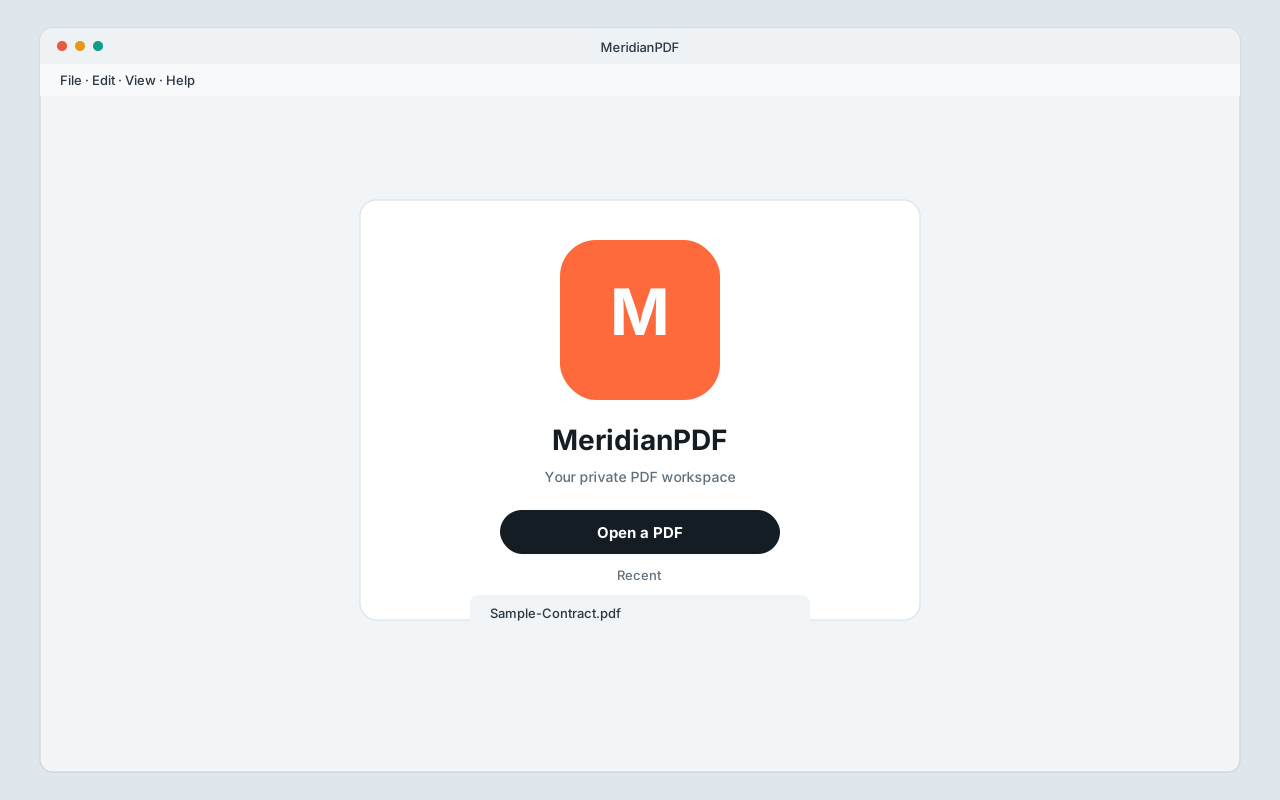 Welcome screen — open a PDF or continue from Recent.
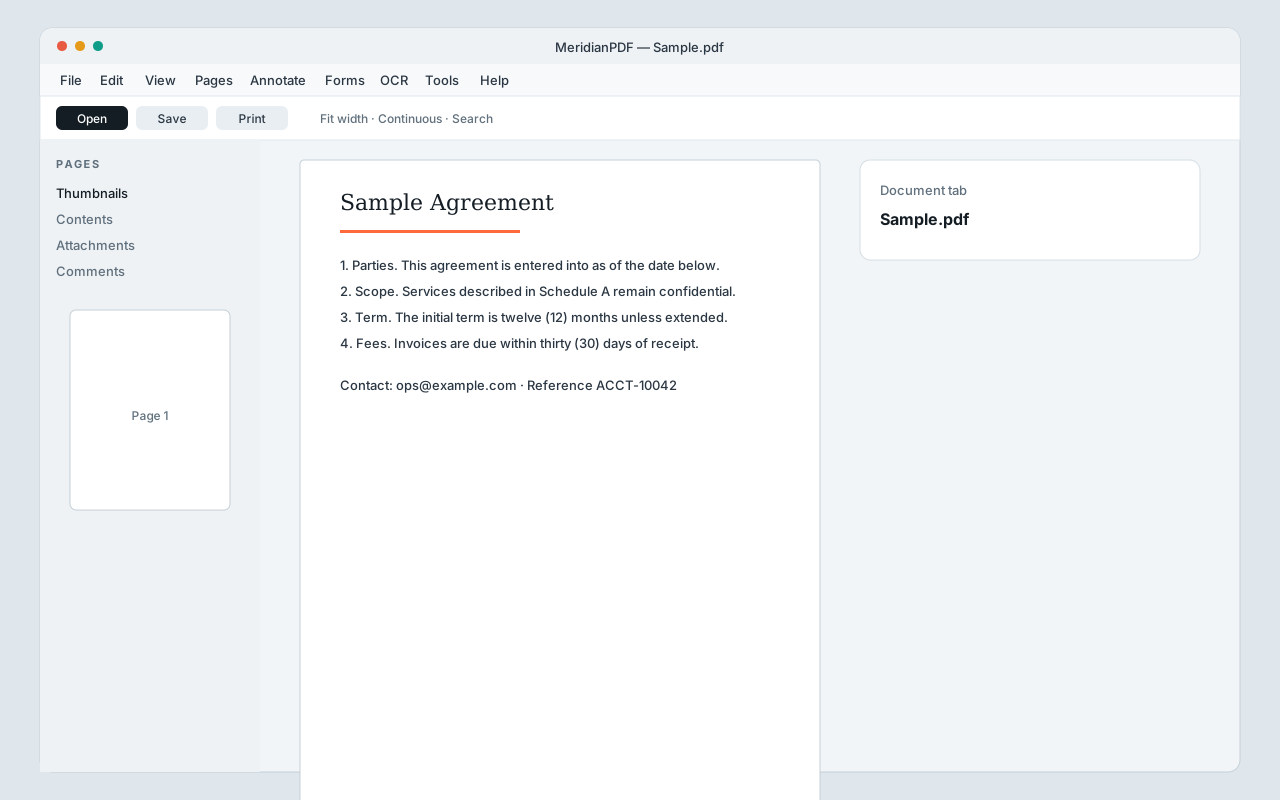 Main window — menus, toolbar, Pages panel, document tab, and viewer.
Chapter 2
Workspace & save
Tabs, windows, and keeping your edits on disk.
- Each open file appears as a document tab. Switch tabs to move between PDFs.
- File → Move to New Window detaches the current document into its own window.
- Use File → Save or Save As…. Check Document properties… for title and metadata.
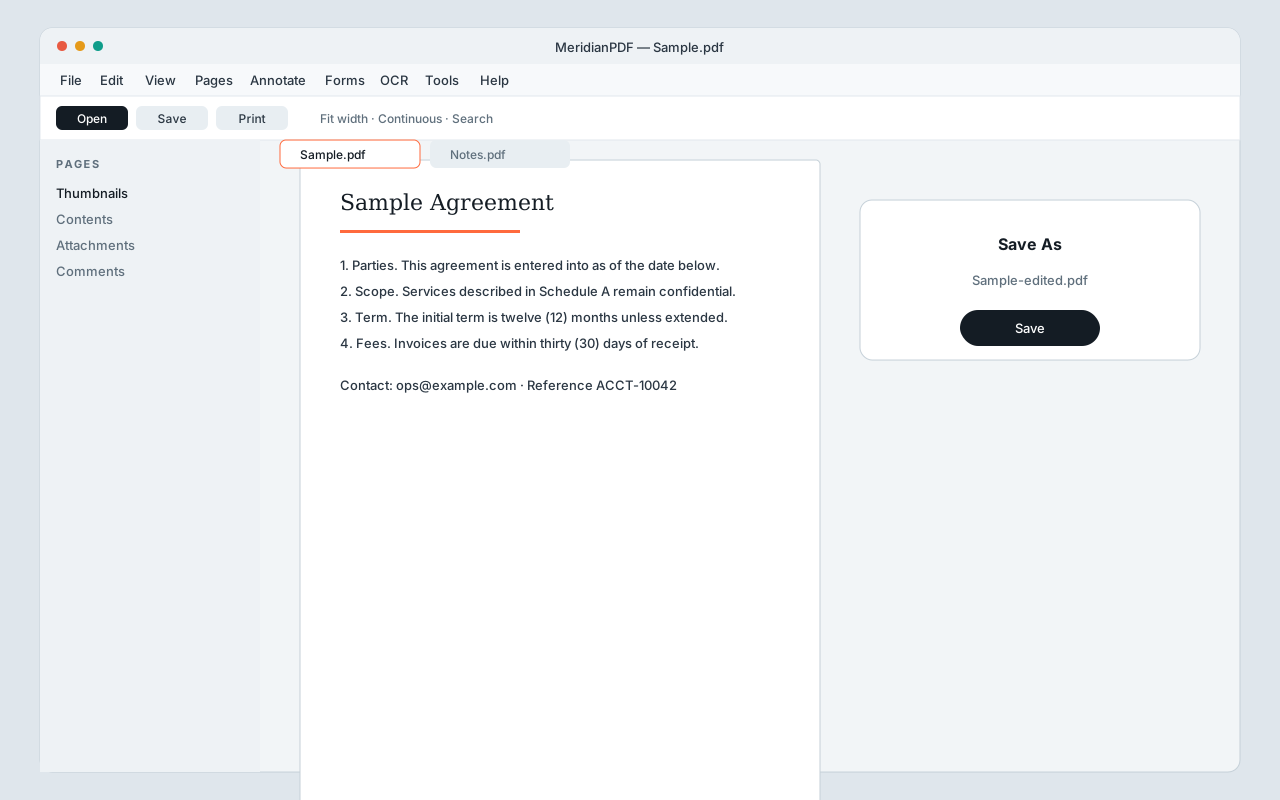 Document tabs and save — keep working copies local.
Chapter 3
Navigate & layouts
Single page, continuous scroll, or two-page reading.
- View → Continuous reading scrolls the whole document; Single page shows one page at a time.
- View → Two pages (scrolling) shows facing pages while you scroll.
- Open PAGES → Thumbnails to jump, select, or rearrange pages.
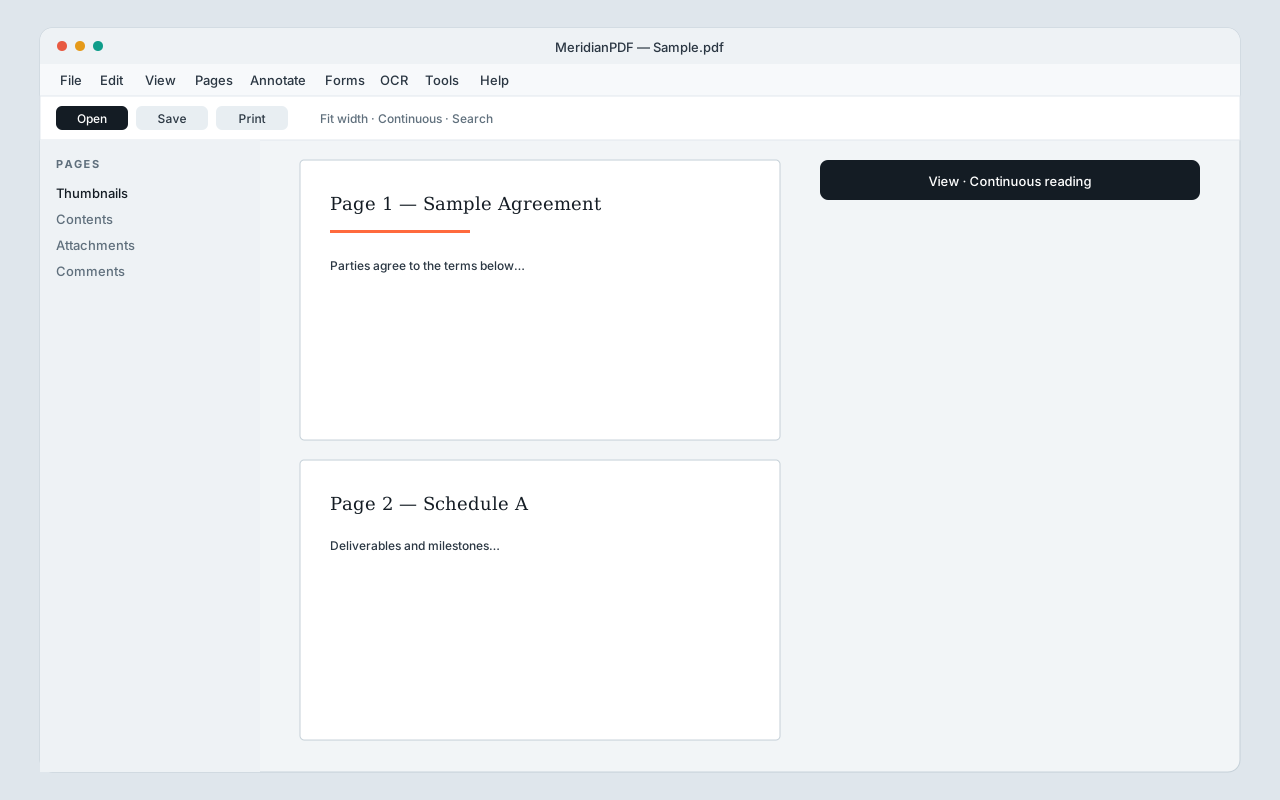 Continuous reading.
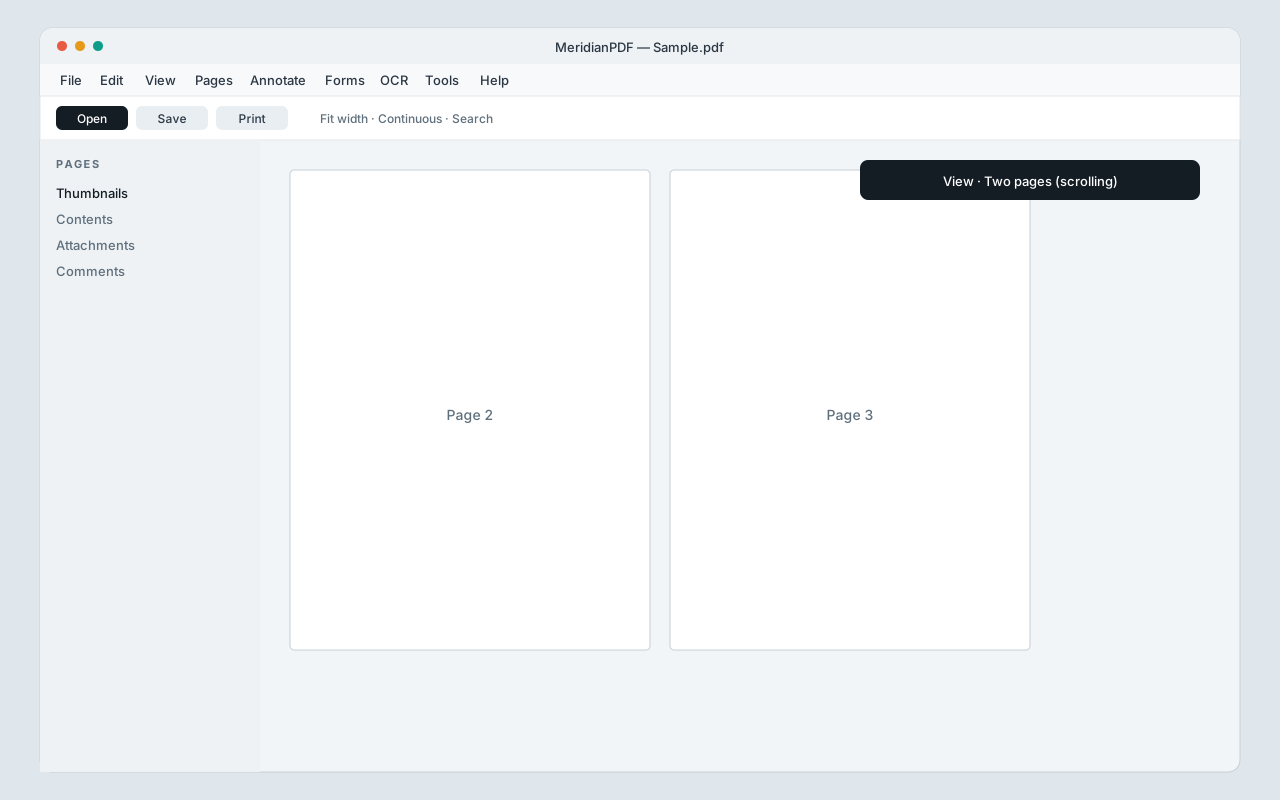 Two pages (scrolling).
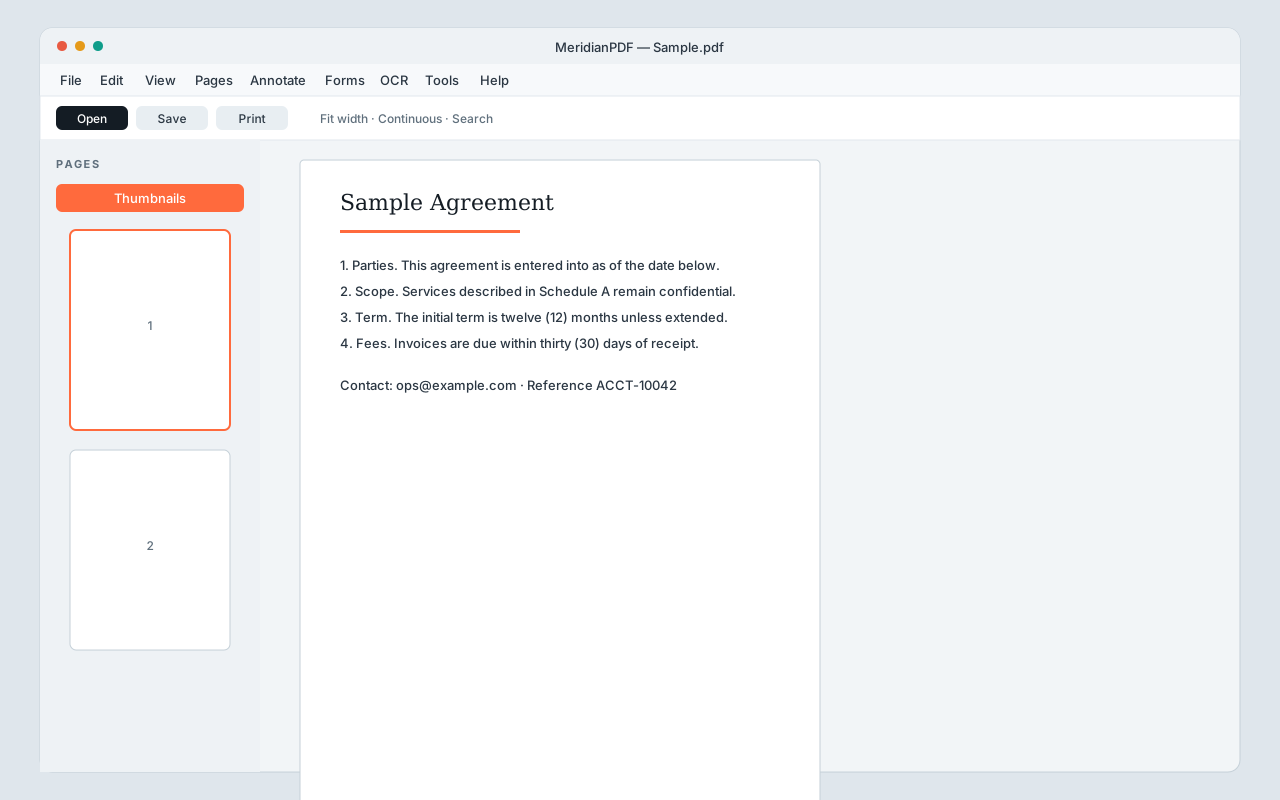 Thumbnails for navigation and page selection.
Chapter 4
Contents & attachments
Jump from the outline, and manage embedded files.
- Open PAGES → Contents (or View → Table of contents) to browse bookmarks.
- Add, rename, or delete bookmarks when the document supports outline editing.
- Open Attachments to list, open, or save files embedded in the PDF.
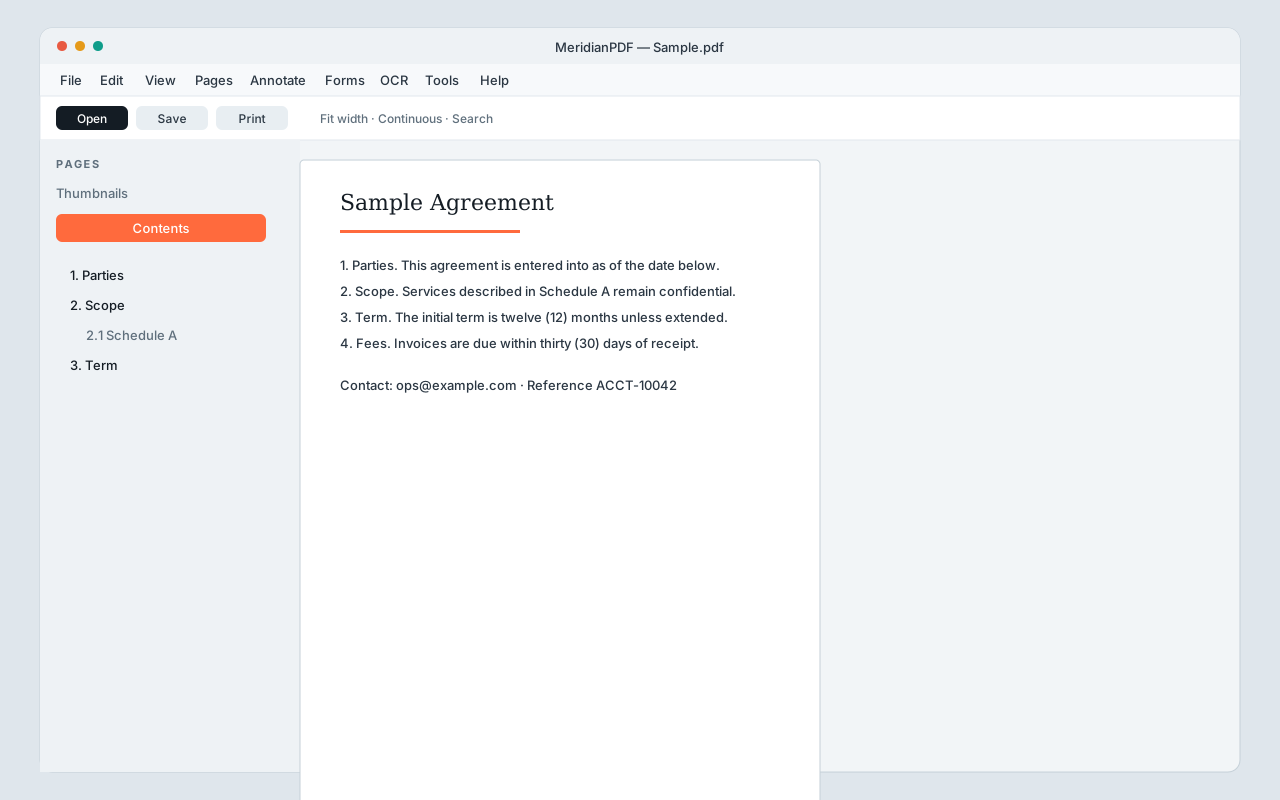 Contents — jump from the document outline.
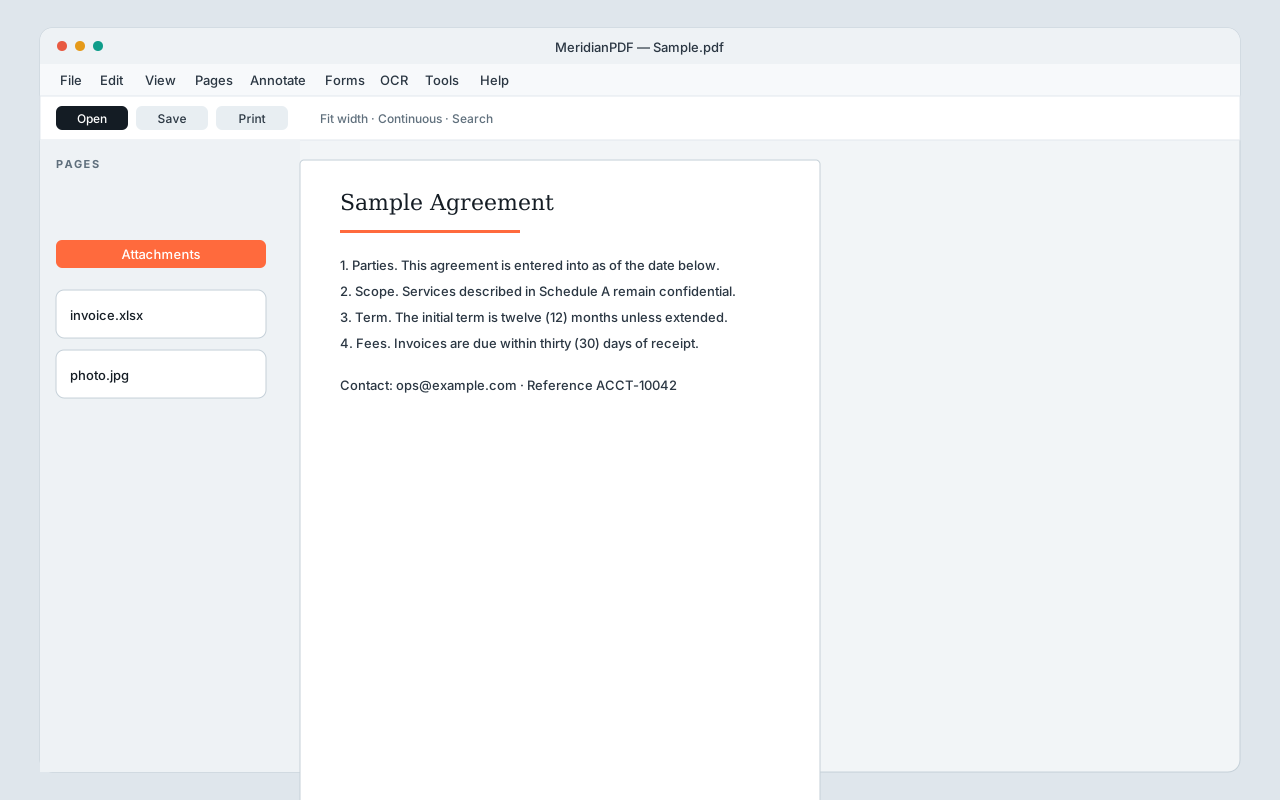 Attachments panel.
Chapter 5
Zoom, search & select
Fit the page, find text, copy text or a screen region.
- View → Fit page, Fit width, or Actual size. Shift+scroll zooms.
- Press Ctrl+F, type a phrase, and open a result to jump and highlight.
- Edit → Select text on document to copy text. Annotate → Select area (copy image) copies a region to the clipboard as an image.
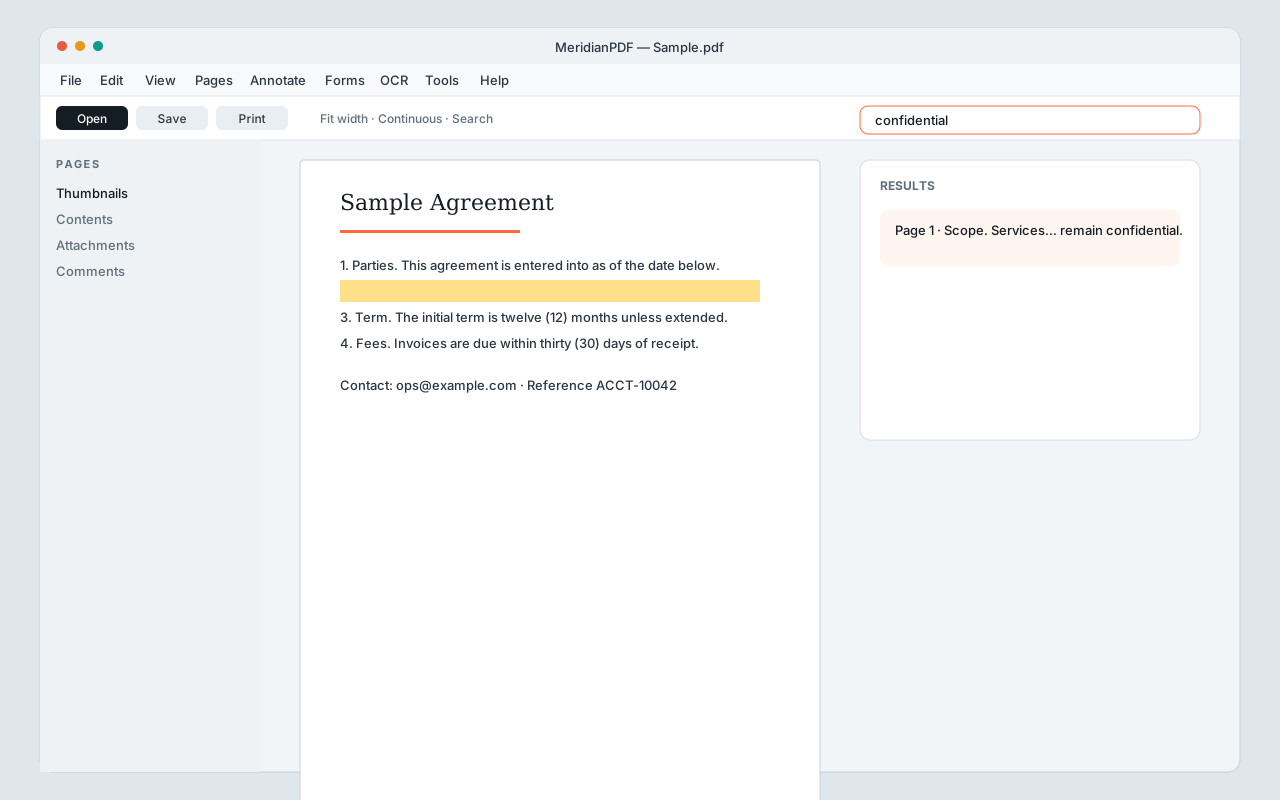 Search with snippets and on-page highlight.
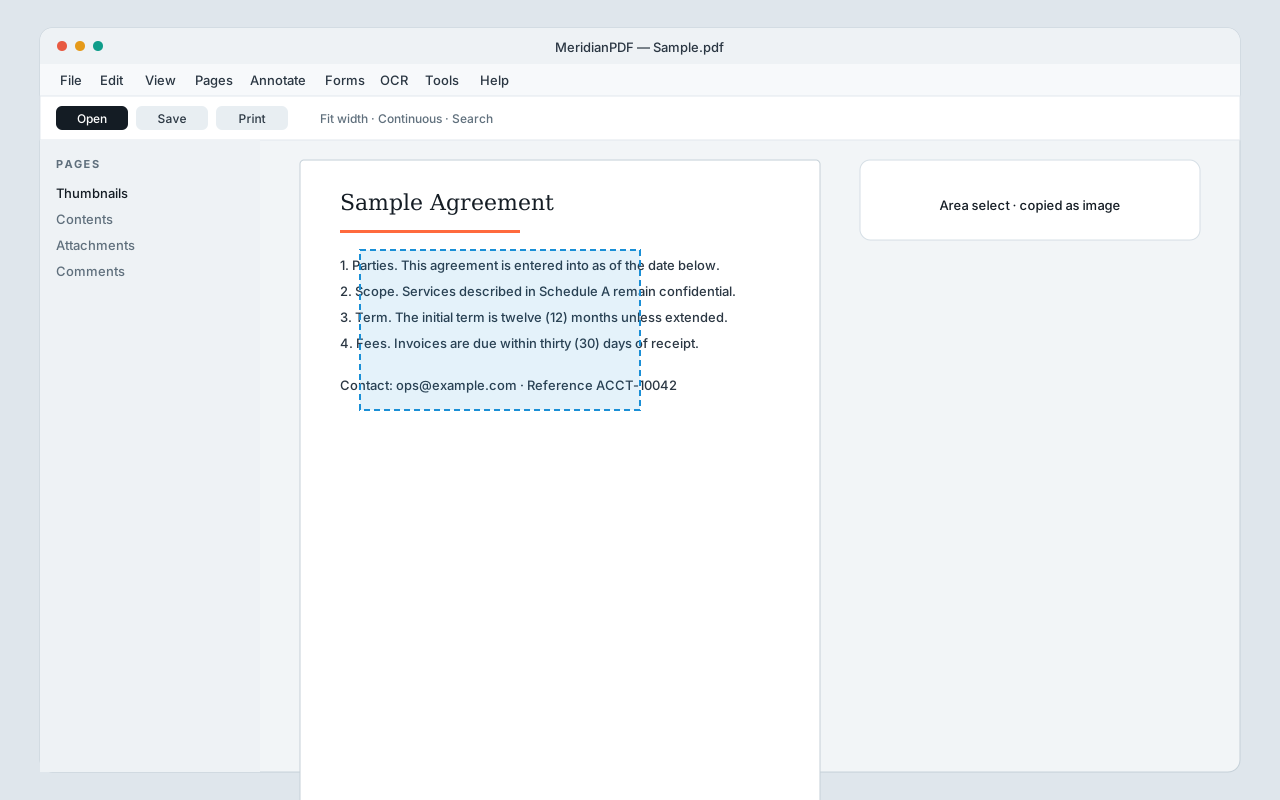 Area select — copy a region as an image.
Chapter 6
Organize pages
Insert, extract, split, delete, and export pages.
- Select pages in Thumbnails, then Edit: cut, copy, paste, duplicate, or delete.
- Pages → Insert PDF… / Insert blank page… to add pages at a chosen position.
- Extract or Delete pages by number…, Split into individual pages…, or Export pages… / Export pages as images….
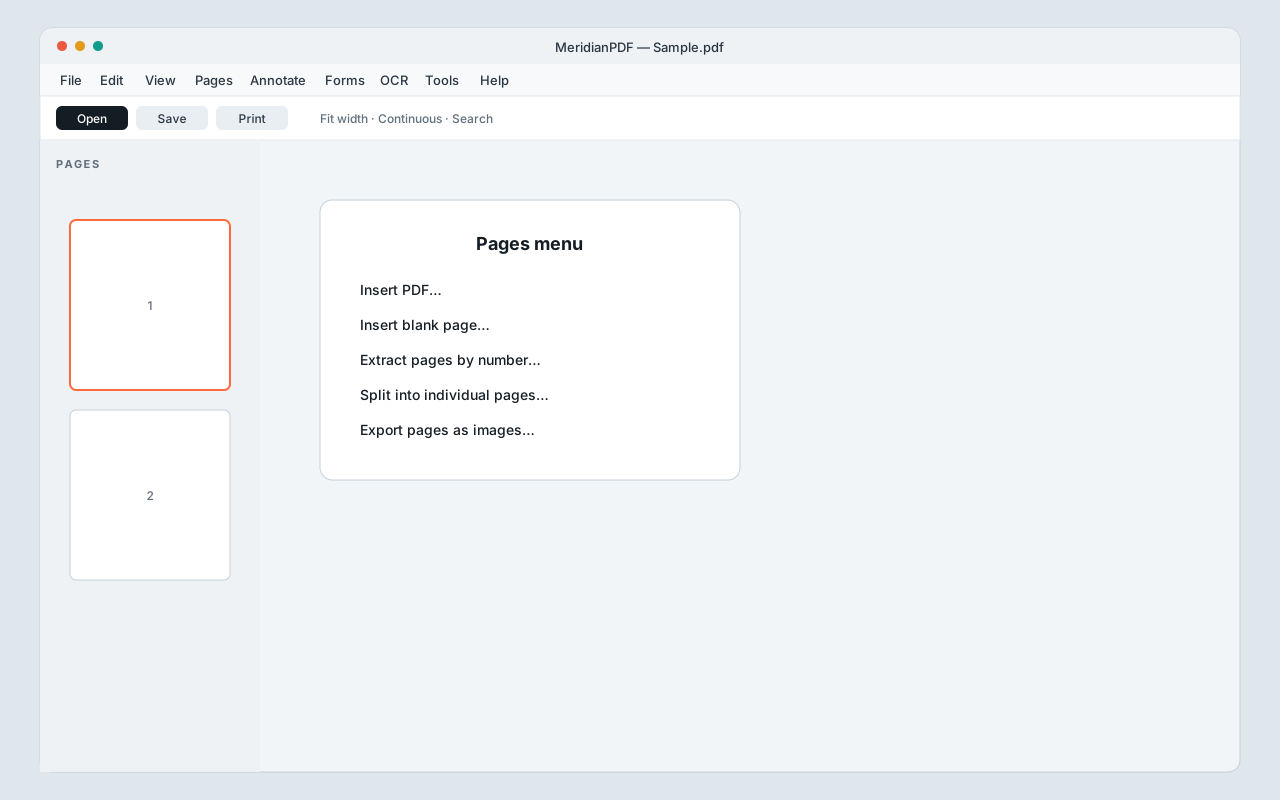 Page organization from Pages and Edit menus.
Chapter 7
Annotate & markup
Highlights, notes, shapes, stamps, images, and signatures.
- Open Annotate: highlight, underline, strikeout, text box, or sticky note.
- Use Smart Draw for freehand, line, arrow, rectangle, or ellipse. Add a Stamp, Image…, or Signature image….
- Select / move / resize to adjust. Open the Comments panel or Annotation Options for properties. Optionally enable Flatten annotations when saving.
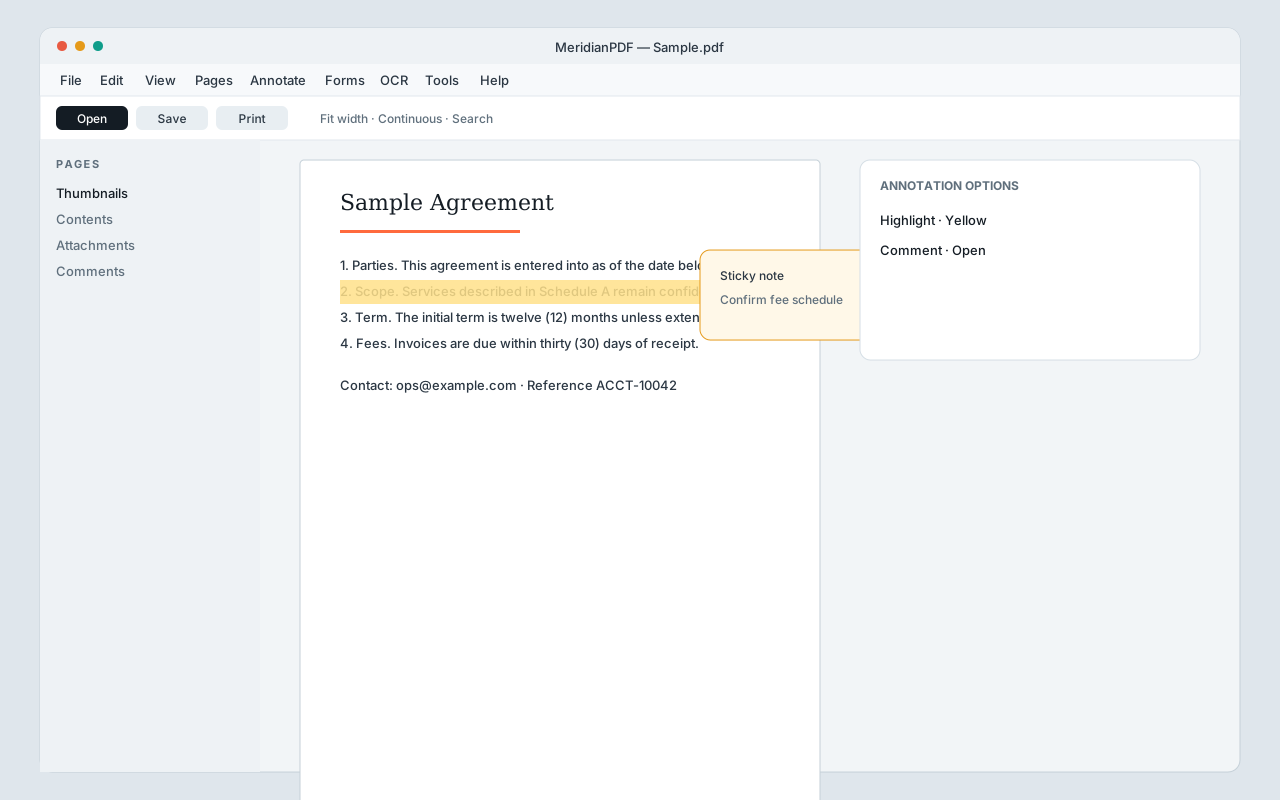 Highlight and sticky note.
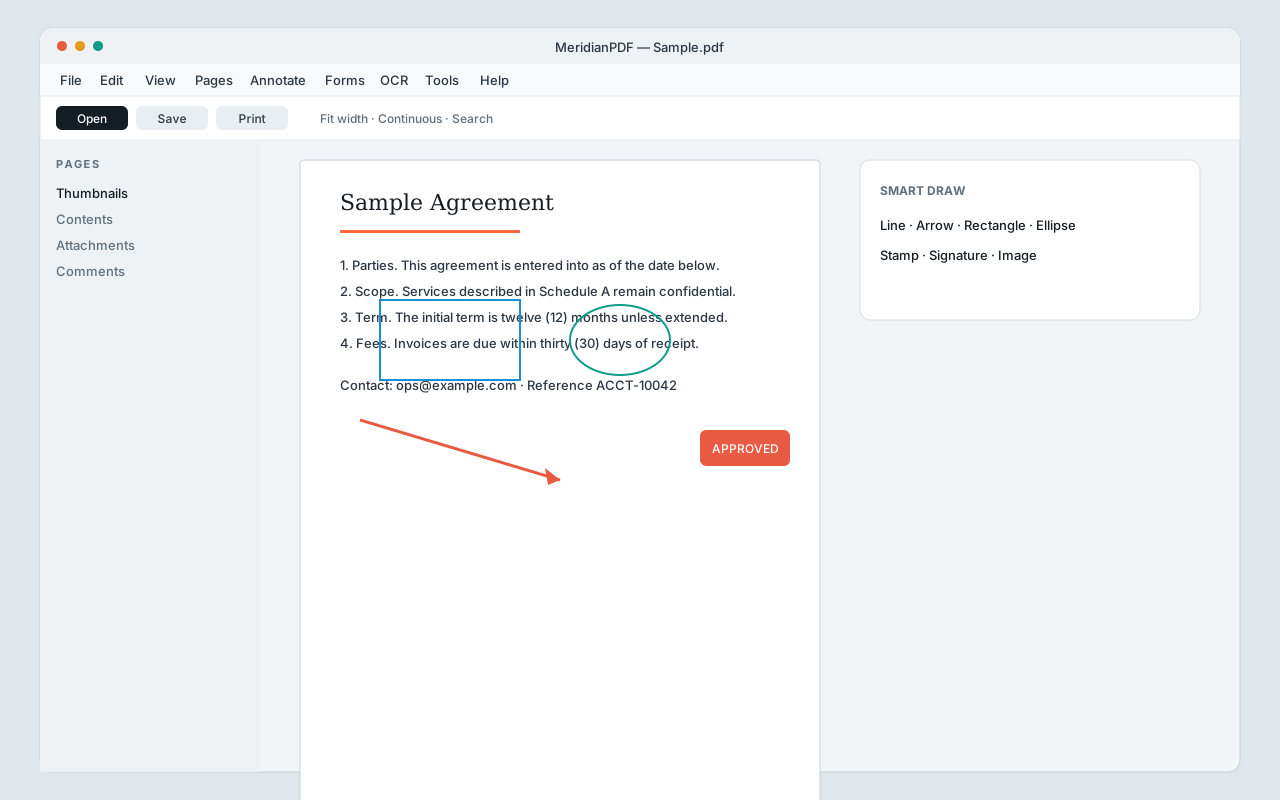 Smart Draw shapes, stamp, and signature tools.
Chapter 8
Cover & redact
Visual whiteout vs permanent black redaction.
- Annotate → Cover & redact → Whiteout covers content visually only.
- Mark for redaction, draw boxes, then Apply redaction… to burn solid black covers into the file.
- Use Cover and replacement text when you need a whiteout plus typed replacement.
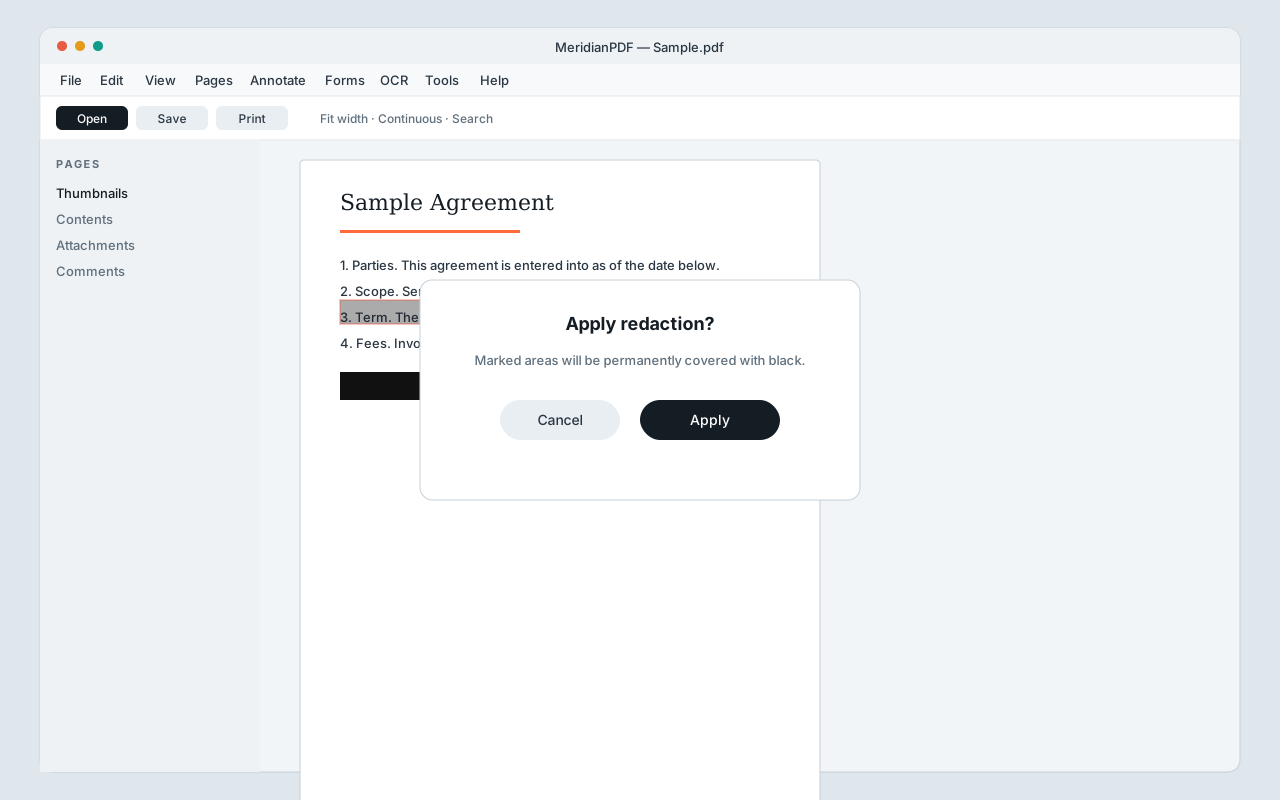 Mark for redaction, then Apply.
Tip: Apply redaction when the underlying text must not remain in the PDF. Whiteout alone can still leave text in the file.
Chapter 9
Watermark & page background
Label drafts or brand pages before sharing.
- Choose Annotate → Watermark text… and enter the label (for example CONFIDENTIAL).
- Choose Annotate → Page background… to set a page fill when needed.
- Save the PDF so the watermark or background is stored with your edits.
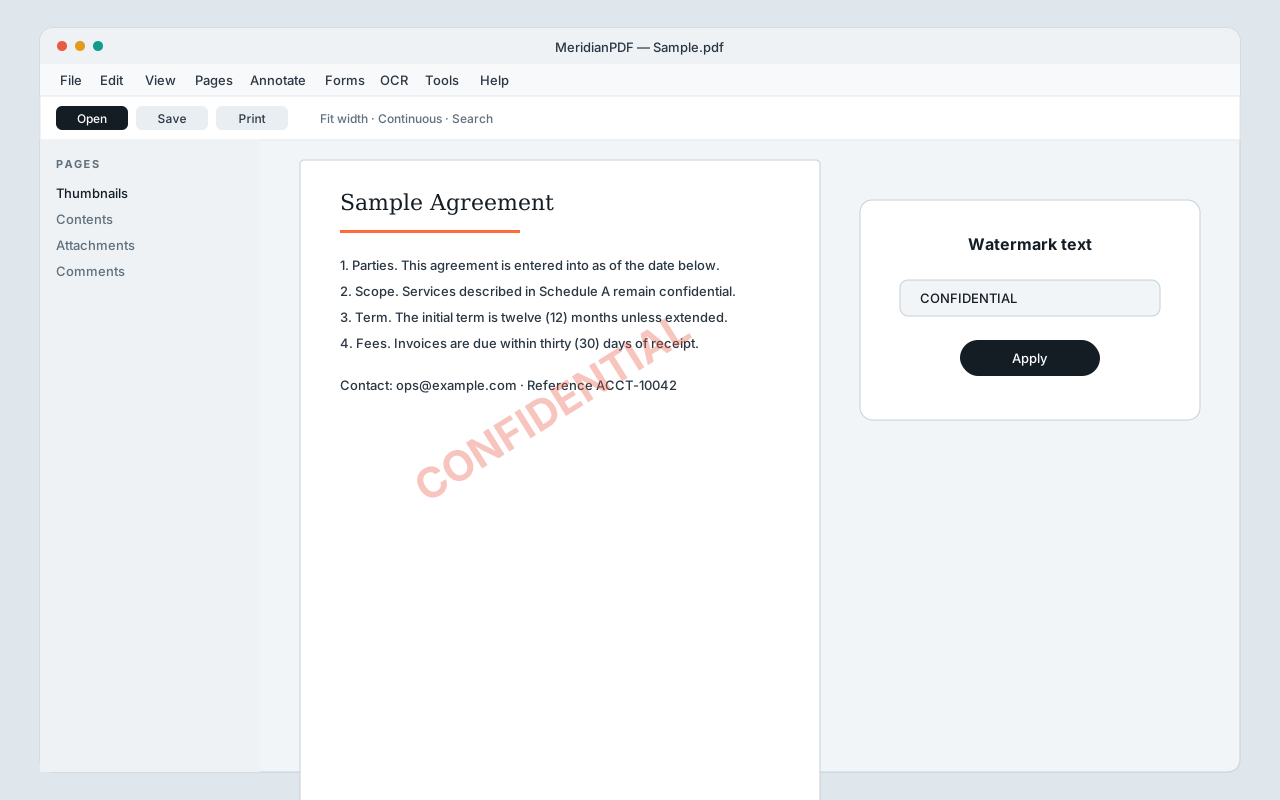 Watermark text over a sample page.
Chapter 10
Forms
Build fillable fields, or fill existing AcroForm PDFs.
- Forms → Create a form opens the orange FORM toolbar (Text, Check, Dropdown, Sign, and more).
- Enable Grid / Snap, set names and required flags in Form Options, then Validate required fields.
- Publish fillable PDF… to save. To fill an existing form, open it and click fields directly. Optionally flatten form fields on save.
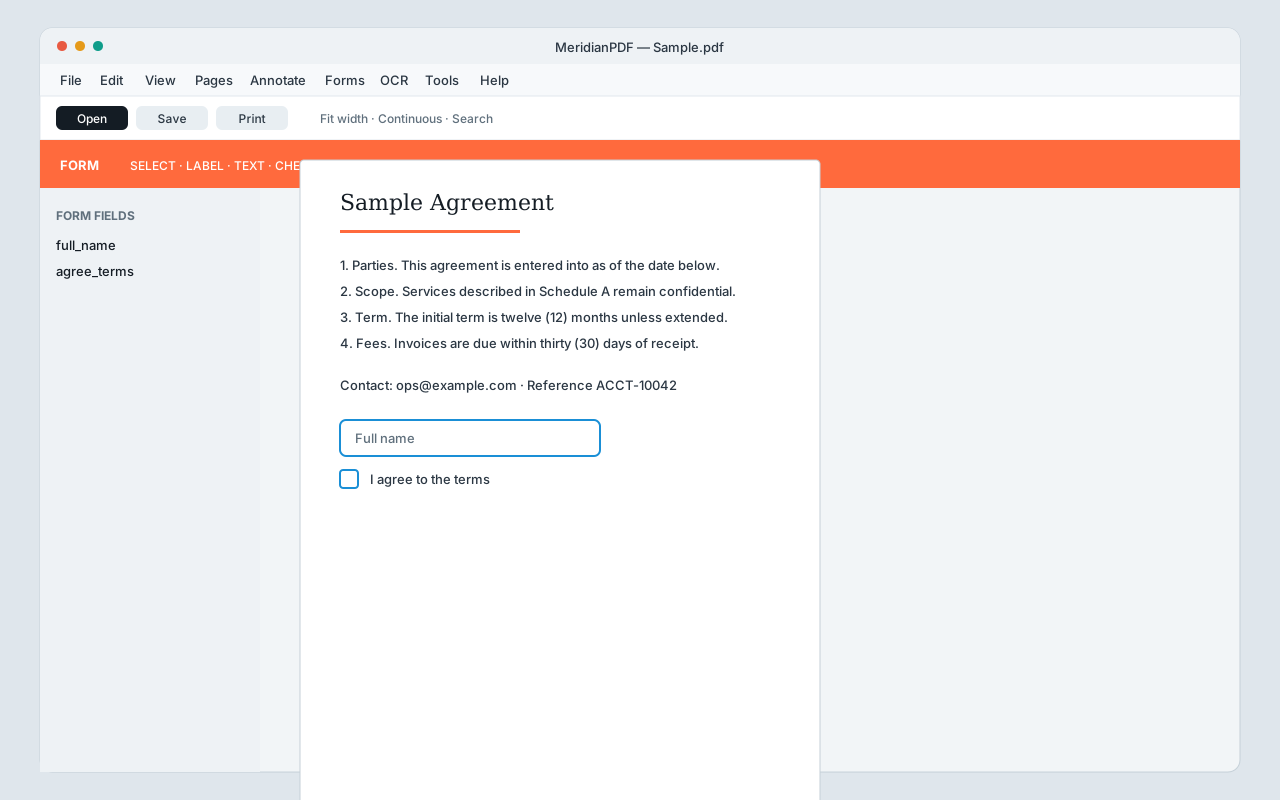 Form builder — place fields, then publish.
Chapter 11
OCR (make searchable)
Recognize text on scans entirely on your device.
- OCR → Make searchable… for the whole document, or OCR current / selected pages.
- Wait for progress to finish, then use Search on the recognized text.
- Export recognized text… or Export text page by page… when you need a text file.
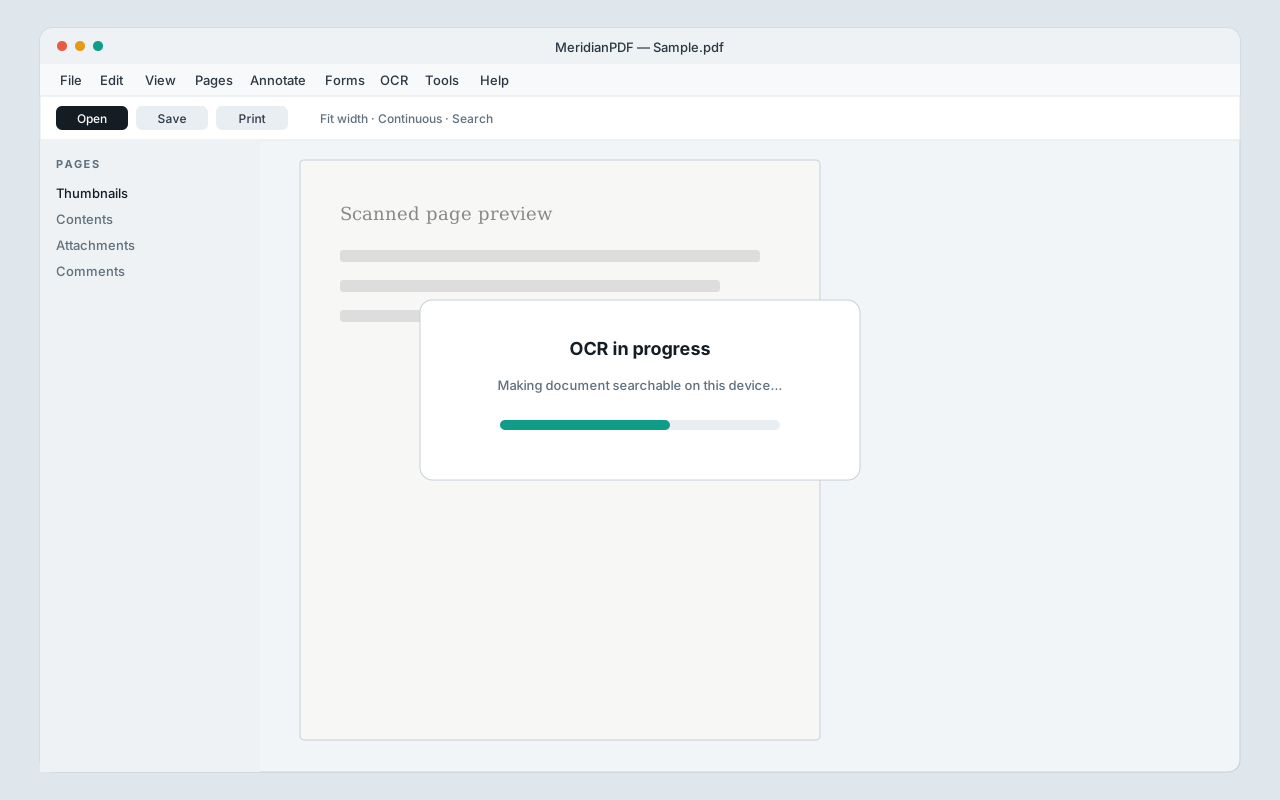 Make searchable runs offline.
Chapter 12
Create & convert
Build PDFs from scratch, images, other PDFs, or Office files.
- File → New blank PDF… or Create from images….
- File → Combine PDFs… to merge files in order.
- File → Convert… for Word, Excel, PowerPoint, HTML, or RTF → PDF.
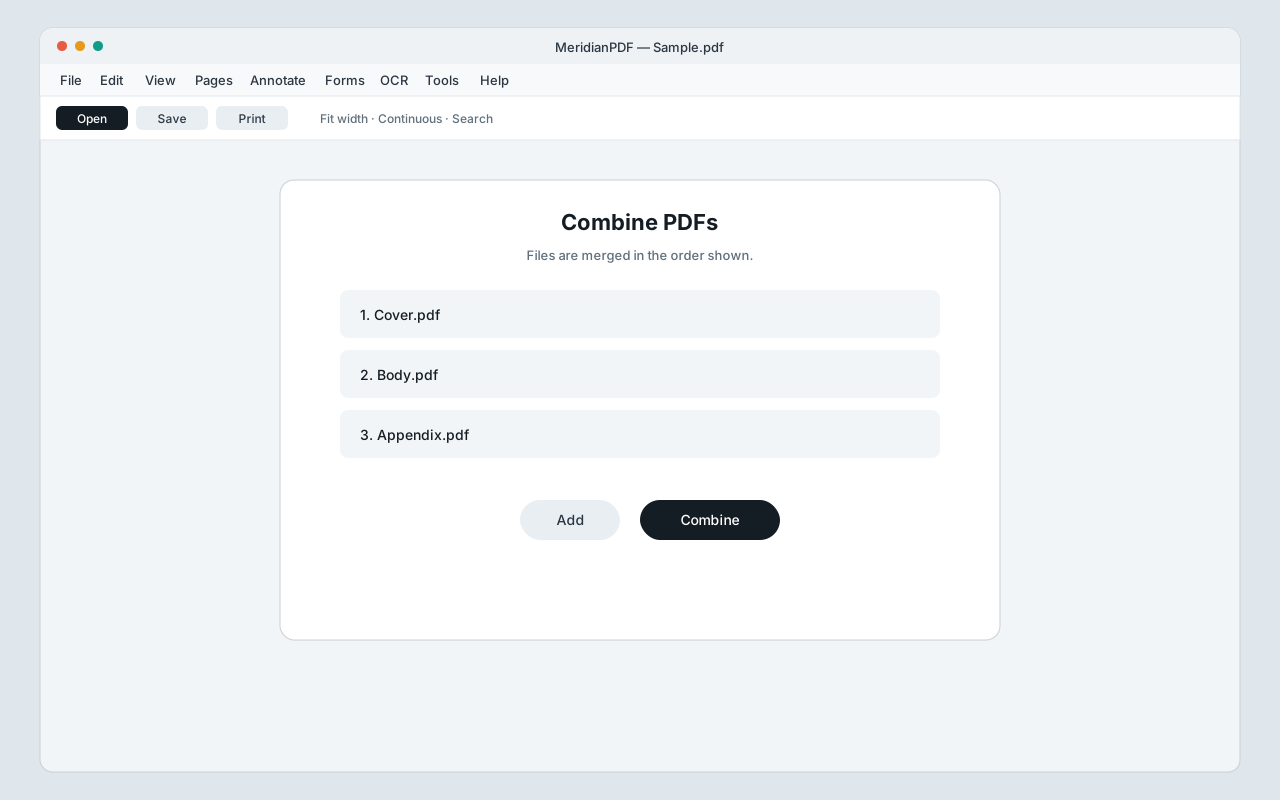 Combine PDFs.
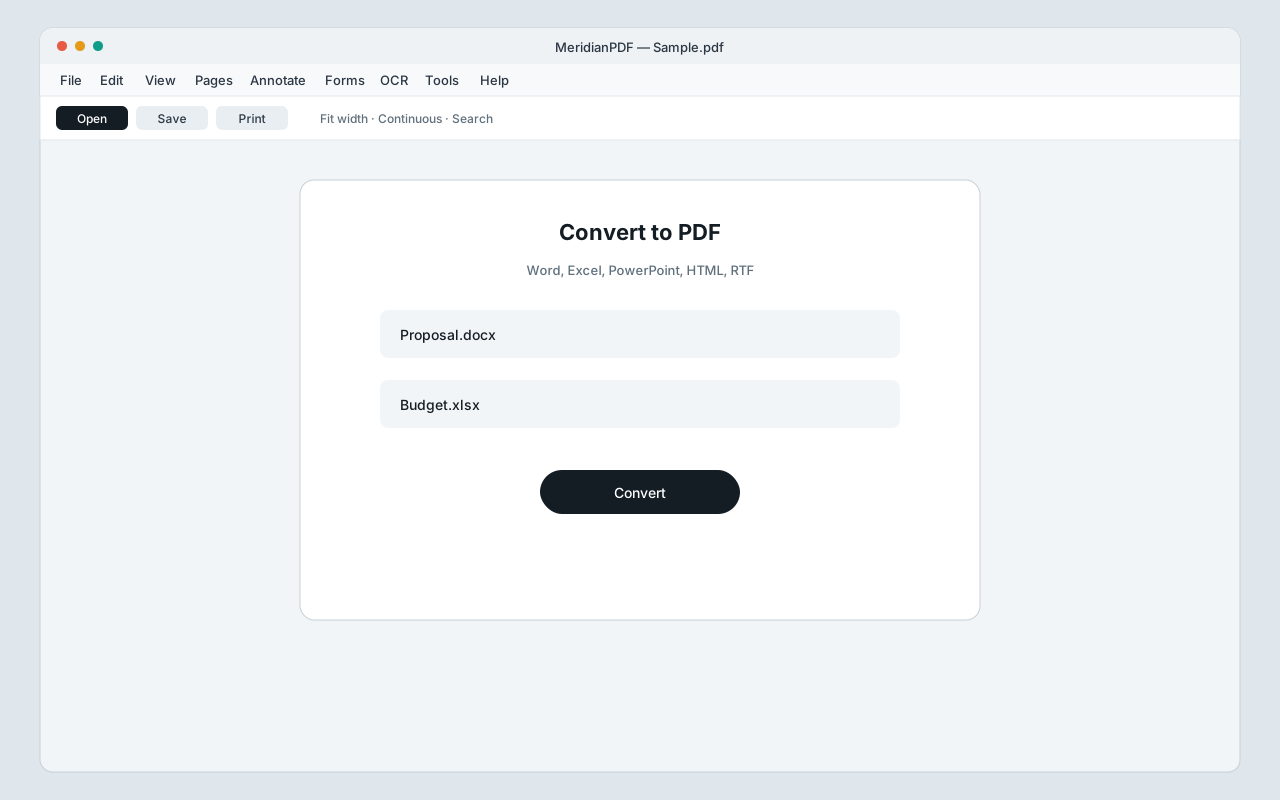 Convert Office / HTML / RTF to PDF.
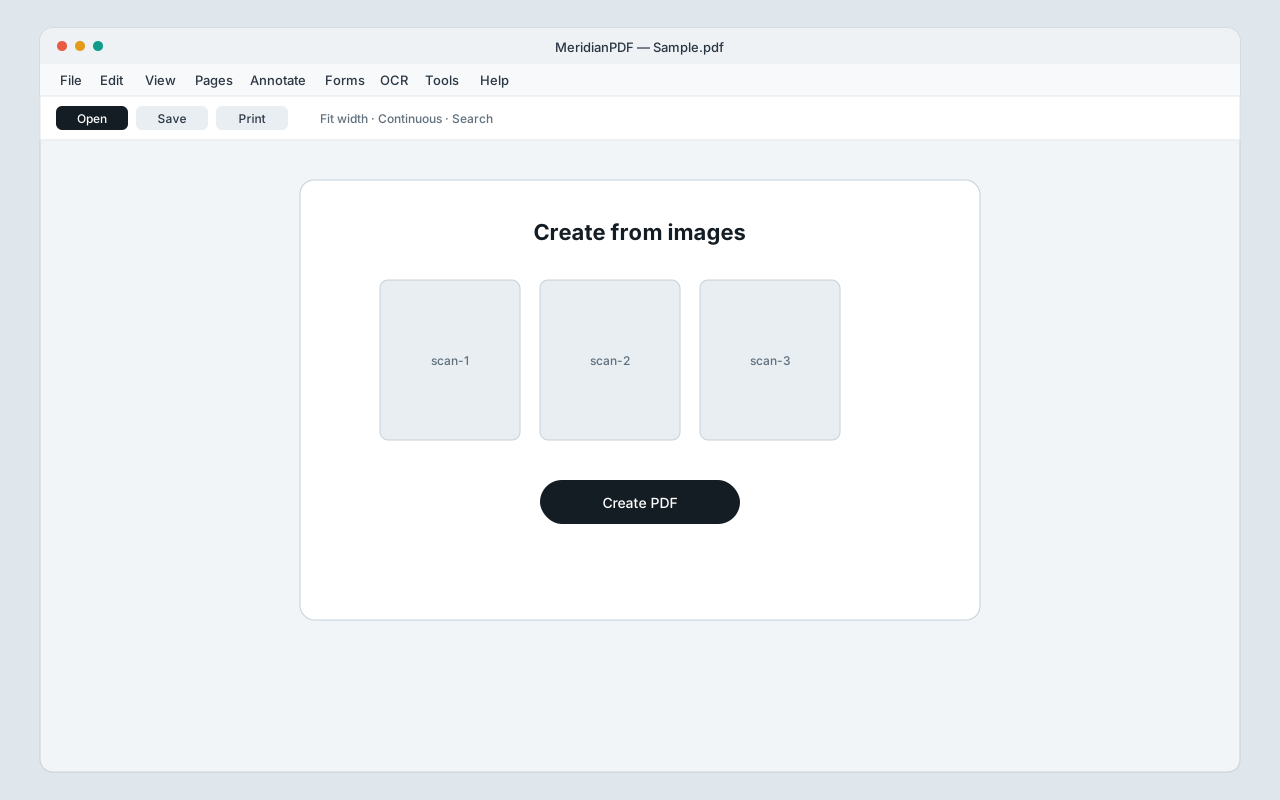 Create from images.
Chapter 13
Crop & headers
Trim page margins and add page numbers or labels.
- Tools → Crop page — drag the area to keep, then confirm.
- Tools → Headers, footers and page numbers… to add running labels.
- Save the document after applying crop or header/footer changes.
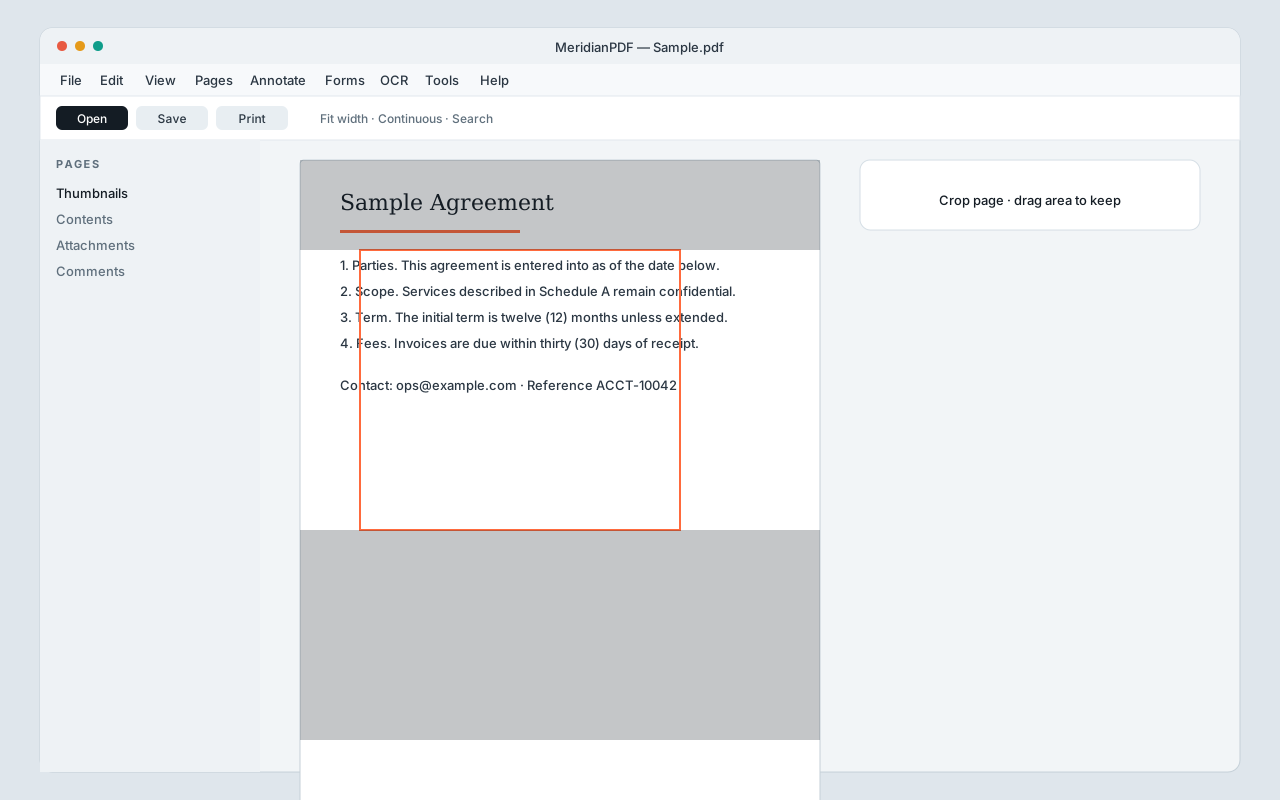 Crop page — keep the selected area.
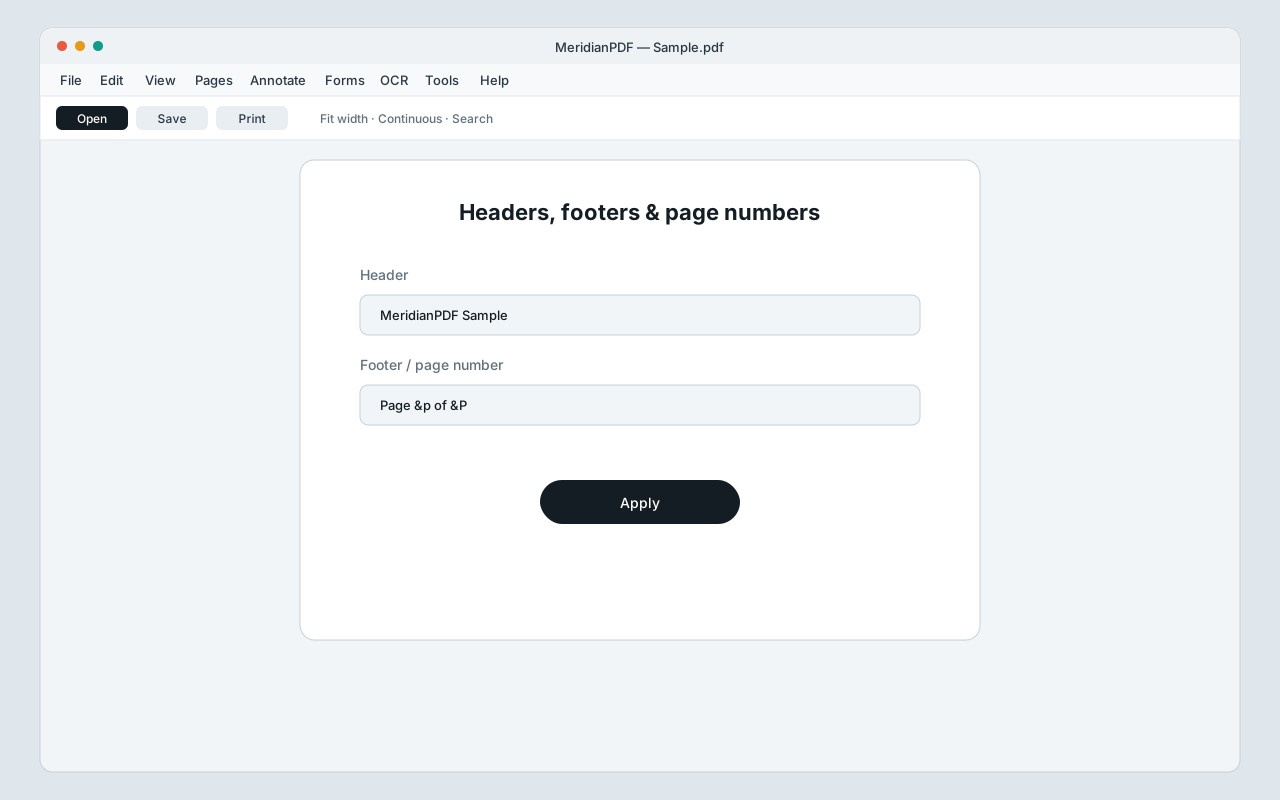 Headers, footers, and page numbers.
Chapter 14
Print & batch print
Preview a single file or queue several PDFs.
- File → Print / Print preview… to set paper options and print the open document.
- File → Batch print… to add multiple PDFs to a print queue.
- Confirm printer settings before sending the job.
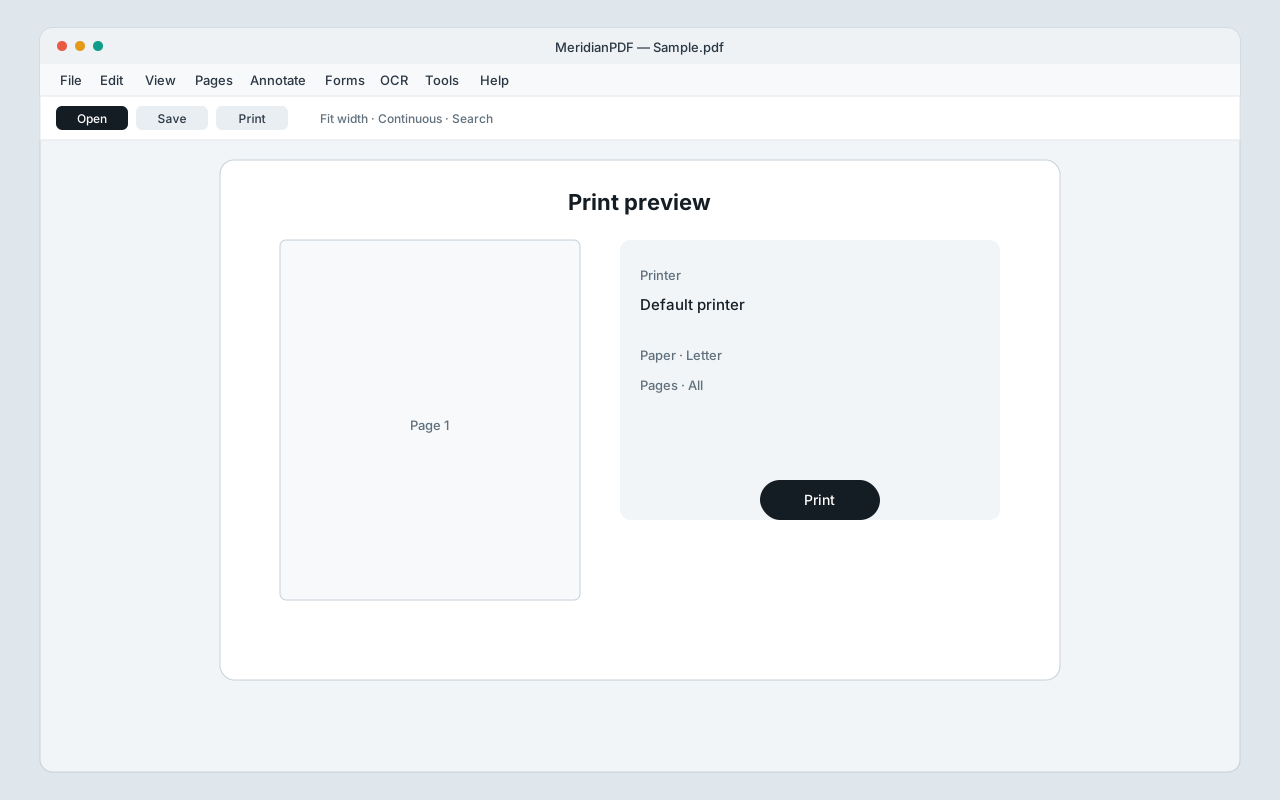 Print preview.
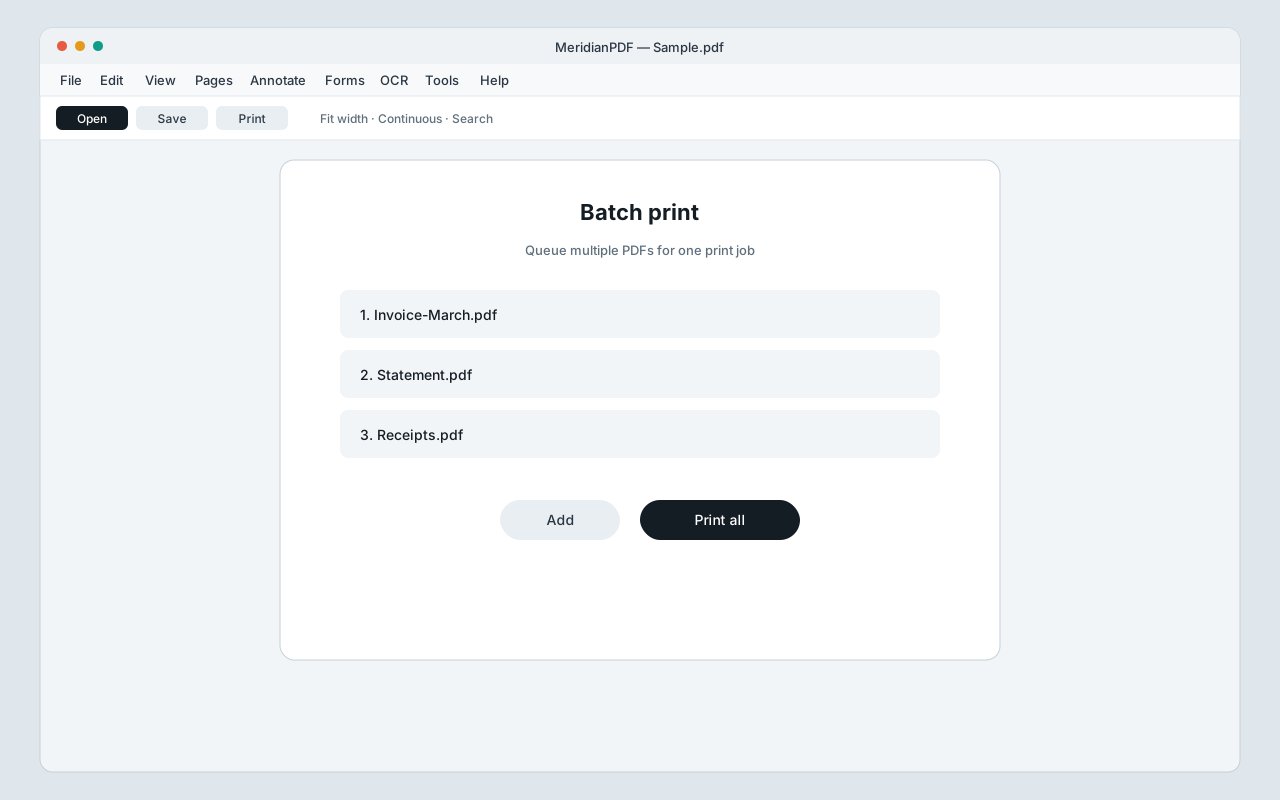 Batch print queue.
Chapter 15
Protect & share
Lock a copy before sharing, or hand the file to another app.
- File → Save password-protected copy… (or Tools → Password-protect a copy) saves a locked PDF; your working copy can stay unlocked.
- File → Share via email… attaches the file in your mail client.
- File → Share / Open with… opens the PDF in another installed app.
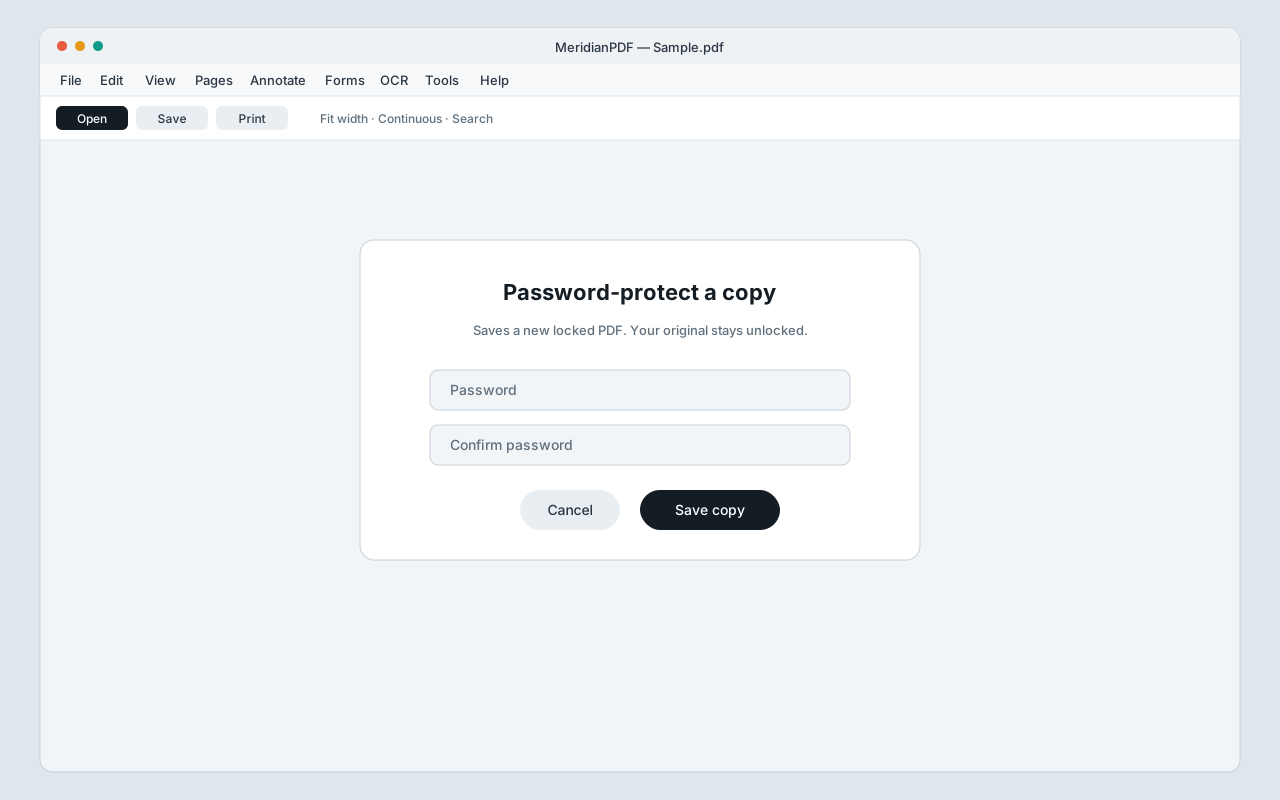 Password-protect a copy.
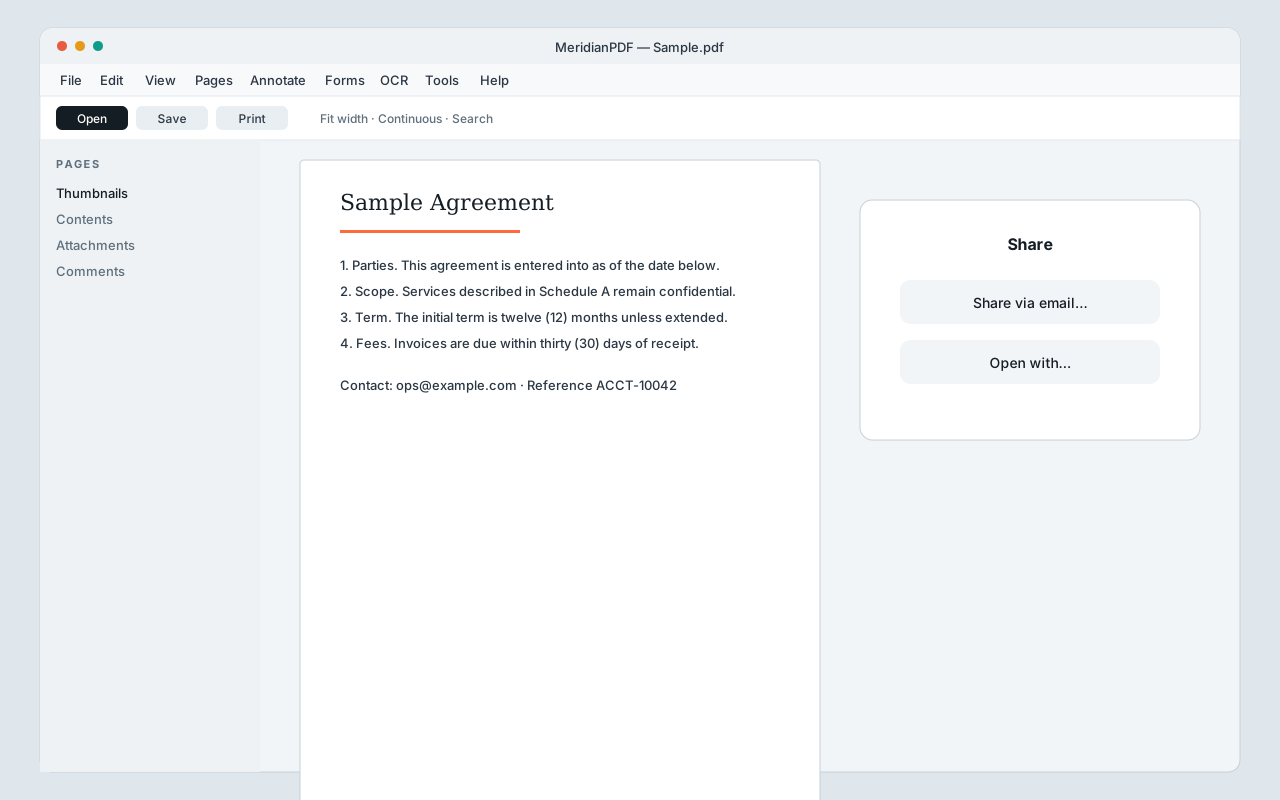 Share via email or Open with.
Chapter 16
Language, theme & shortcuts
Match the app to how you work — without leaving your machine.
- View → Language switches the UI (English, Français, Deutsch, Español, العربية RTL, 中文, 한국어, 日本語).
- View → Theme chooses System, Light, or Dark.
- Edit → Customize keyboard shortcuts (also under Help) to change key bindings.
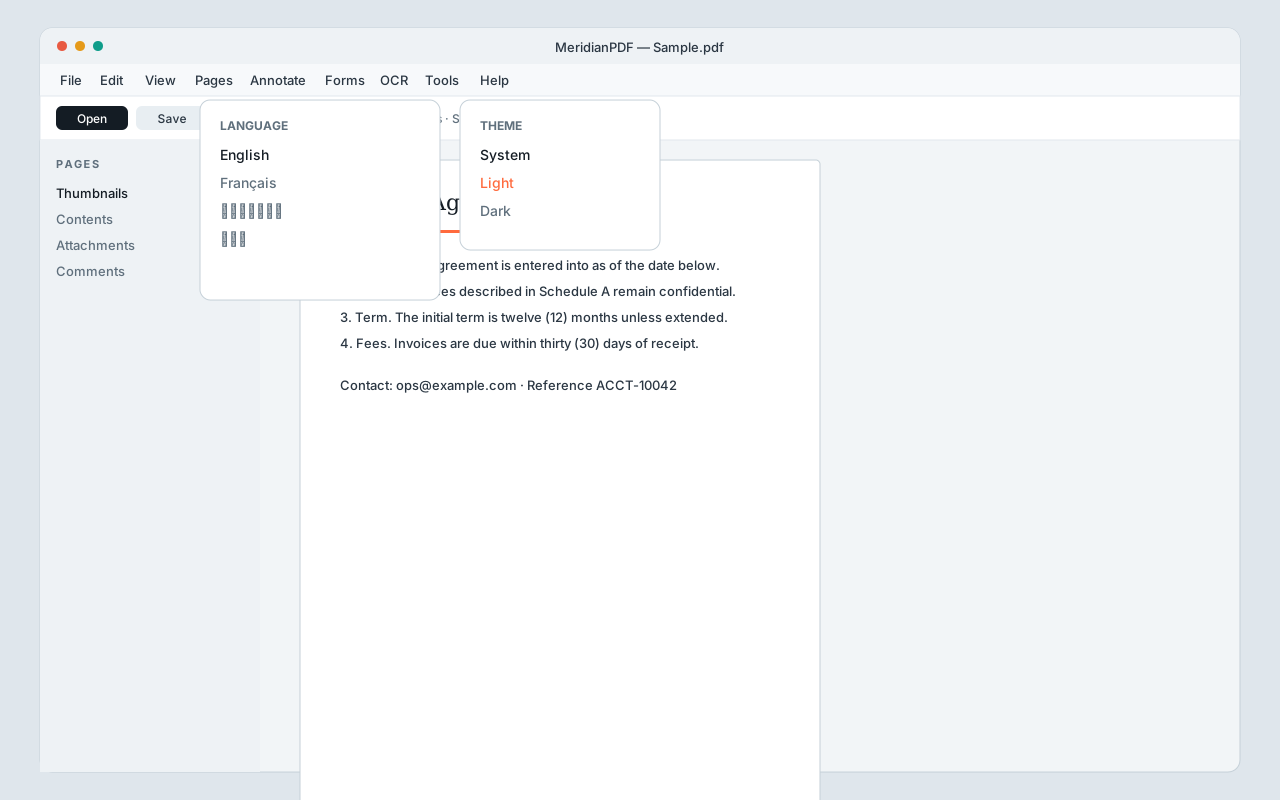 Language and theme.
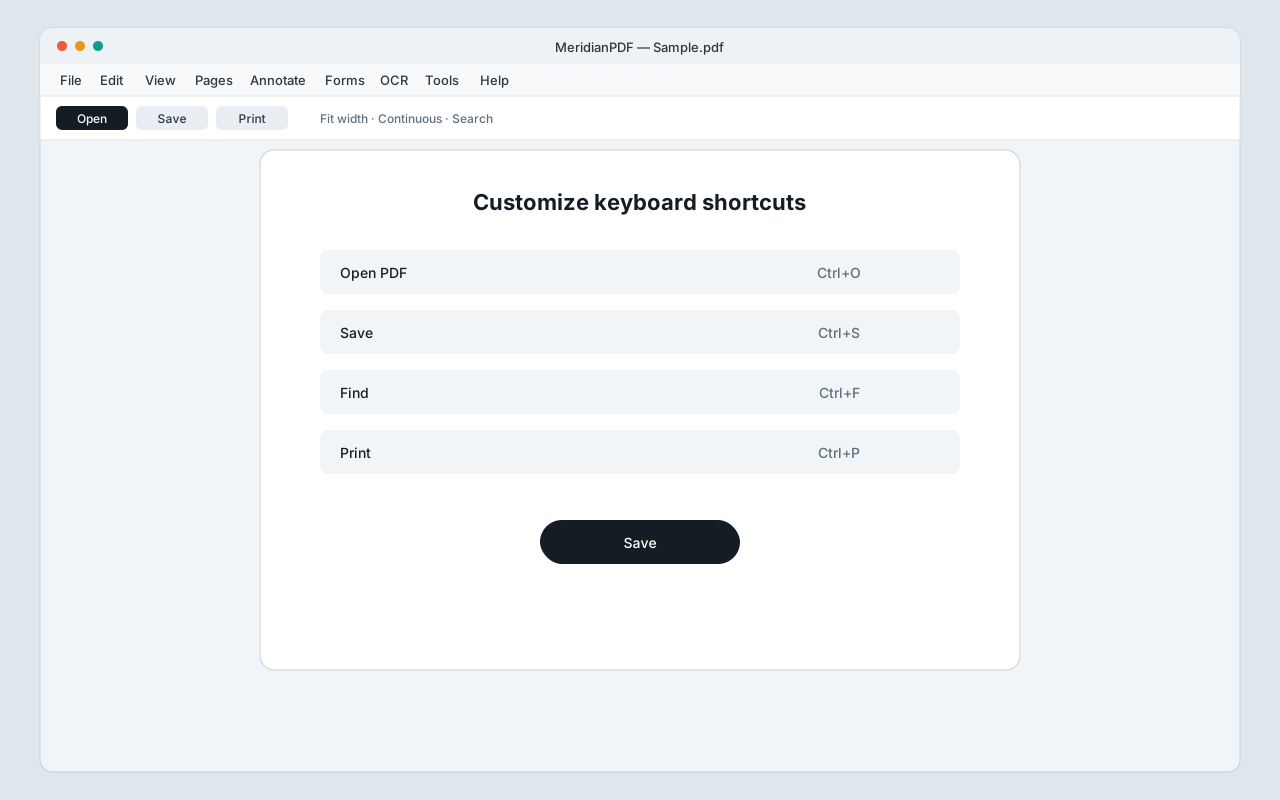 Customize keyboard shortcuts.